> ## Documentation Index
> Fetch the complete documentation index at: https://docs.textin.ai/llms.txt
> Use this file to discover all available pages before exploring further.
# Authentication
> Get your API credentials and authenticate API requests.
## How authentication works
Include your App ID and Secret Code in every API request:
```http theme={null}
x-ti-app-id: YOUR_APP_ID
x-ti-secret-code: YOUR_SECRET_CODE
```
## Get your credentials
Sign in to your [TextIn account](https://www.textin.ai/console/recognition/robot_markdown_beta?service=pdf_to_markdown).
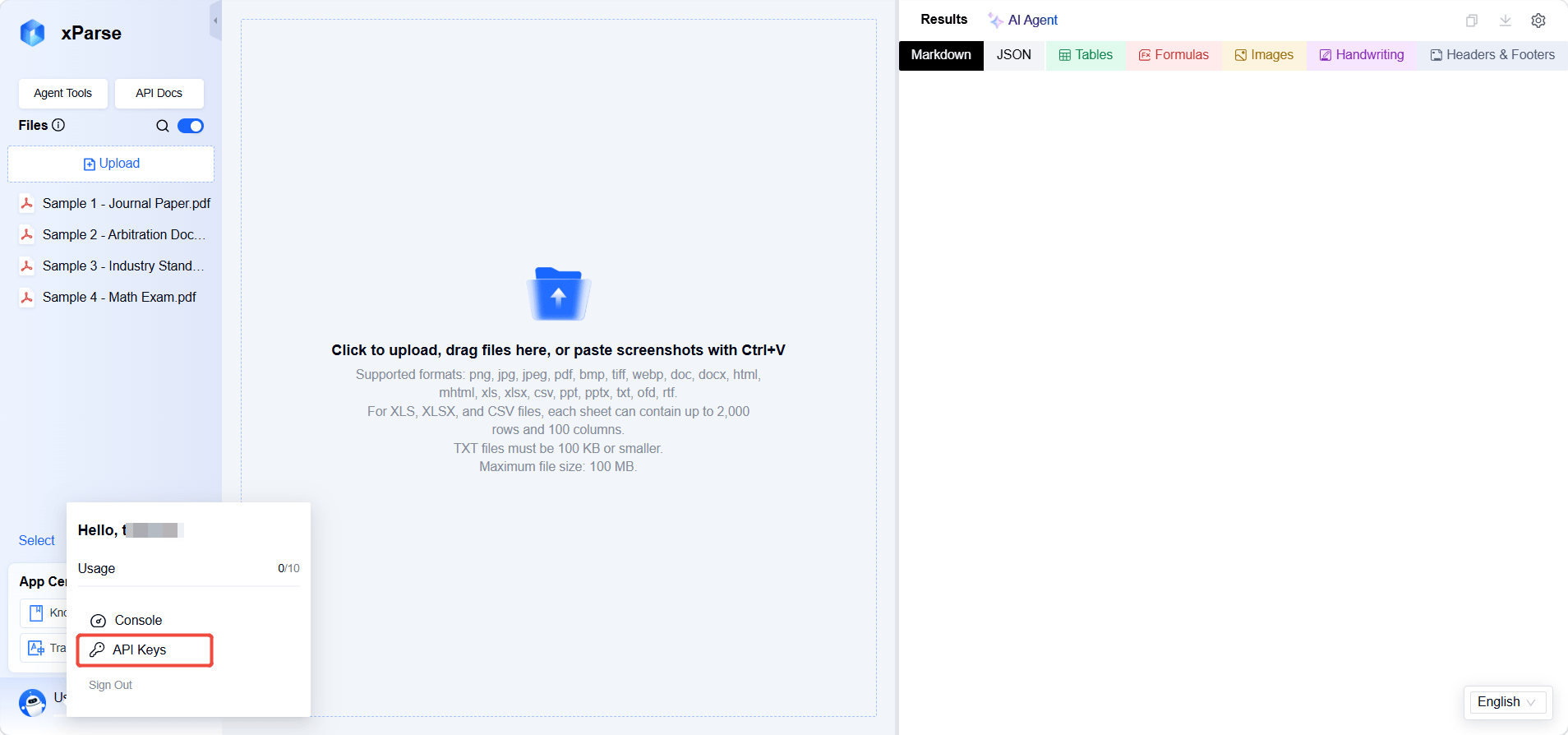
Click your profile icon, then select **API Keys**.
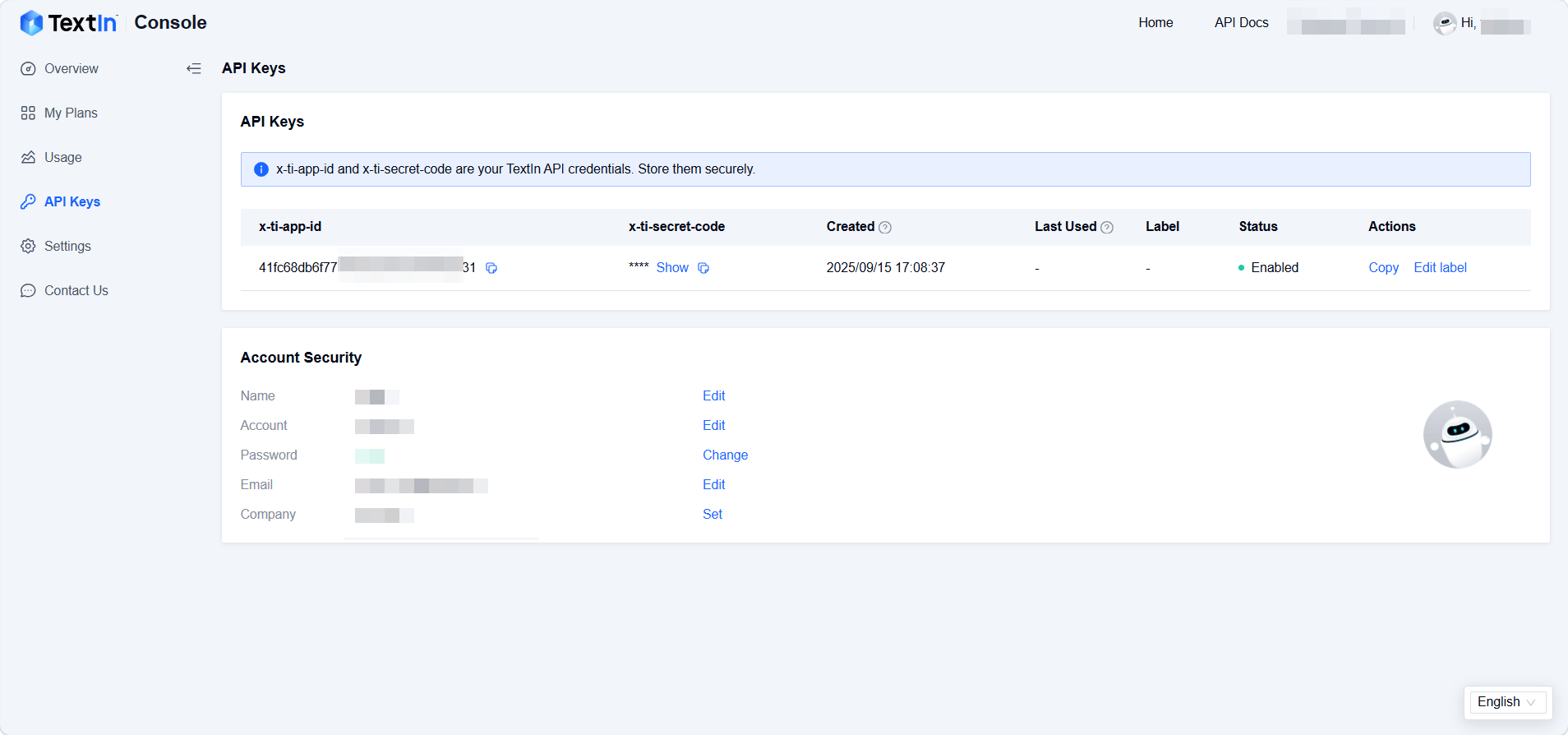
 Copy your **App ID** and **Secret Code**. Use them in the `x-ti-app-id` and `x-ti-secret-code` request headers.
 ## Verify your credentials
Send a test request:
```bash theme={null}
curl -X POST "https://api.textin.ai/api/v1/xparse/parse/sync" \
-H "x-ti-app-id: YOUR_APP_ID" \
-H "x-ti-secret-code: YOUR_SECRET_CODE" \
-F "file_url=https://example.com/document.pdf"
```
If authentication succeeds, the response body includes `"code": 200` and the parsed document data.
## Use environment variables
To avoid hardcoding credentials, store them in environment variables.
**macOS and Linux**
```bash theme={null}
export TEXTIN_APP_ID="your-app-id"
export TEXTIN_SECRET_CODE="your-secret-code"
```
**Windows PowerShell**
```powershell theme={null}
$env:TEXTIN_APP_ID="your-app-id"
$env:TEXTIN_SECRET_CODE="your-secret-code"
```
The following examples read credentials from these environment variables.
```bash theme={null}
curl -X POST "https://api.textin.ai/api/v1/xparse/parse/sync" \
-H "x-ti-app-id: $TEXTIN_APP_ID" \
-H "x-ti-secret-code: $TEXTIN_SECRET_CODE" \
-F "file=@document.pdf"
```
```python theme={null}
import os
import requests
headers = {
"x-ti-app-id": os.environ["TEXTIN_APP_ID"],
"x-ti-secret-code": os.environ["TEXTIN_SECRET_CODE"],
}
response = requests.post(
"https://api.textin.ai/api/v1/xparse/parse/sync",
headers=headers,
files={"file": open("document.pdf", "rb")},
)
print(response.json())
```
## Keep credentials secure
* Never commit credentials to version control.
* Keep credentials on the server. Do not expose them in client-side code.
* Use environment variables in production.
* Contact TextIn support immediately if you believe your credentials have been exposed.
***
## Troubleshooting
| Code | Description | Solution |
| ------- | ---------------------------------------------- | ------------------------------------------------------------- |
| `40101` | One or both authentication headers are missing | Include both authentication headers in the request. |
| `40102` | The App ID or Secret Code is invalid | Verify that you are using the correct App ID and Secret Code. |
| `40103` | Client IP address is not on the IP allowlist | Add the client IP address to the IP allowlist in the console. |
If you continue to see authentication errors after verifying your credentials, contact [TextIn support](https://www.textin.ai/contact) for assistance.
***
## Next steps
Parse a document into Markdown and structured JSON.
Extract structured data with an extraction schema.
Review supported formats, file sizes, and processing limits.
## Verify your credentials
Send a test request:
```bash theme={null}
curl -X POST "https://api.textin.ai/api/v1/xparse/parse/sync" \
-H "x-ti-app-id: YOUR_APP_ID" \
-H "x-ti-secret-code: YOUR_SECRET_CODE" \
-F "file_url=https://example.com/document.pdf"
```
If authentication succeeds, the response body includes `"code": 200` and the parsed document data.
## Use environment variables
To avoid hardcoding credentials, store them in environment variables.
**macOS and Linux**
```bash theme={null}
export TEXTIN_APP_ID="your-app-id"
export TEXTIN_SECRET_CODE="your-secret-code"
```
**Windows PowerShell**
```powershell theme={null}
$env:TEXTIN_APP_ID="your-app-id"
$env:TEXTIN_SECRET_CODE="your-secret-code"
```
The following examples read credentials from these environment variables.
```bash theme={null}
curl -X POST "https://api.textin.ai/api/v1/xparse/parse/sync" \
-H "x-ti-app-id: $TEXTIN_APP_ID" \
-H "x-ti-secret-code: $TEXTIN_SECRET_CODE" \
-F "file=@document.pdf"
```
```python theme={null}
import os
import requests
headers = {
"x-ti-app-id": os.environ["TEXTIN_APP_ID"],
"x-ti-secret-code": os.environ["TEXTIN_SECRET_CODE"],
}
response = requests.post(
"https://api.textin.ai/api/v1/xparse/parse/sync",
headers=headers,
files={"file": open("document.pdf", "rb")},
)
print(response.json())
```
## Keep credentials secure
* Never commit credentials to version control.
* Keep credentials on the server. Do not expose them in client-side code.
* Use environment variables in production.
* Contact TextIn support immediately if you believe your credentials have been exposed.
***
## Troubleshooting
| Code | Description | Solution |
| ------- | ---------------------------------------------- | ------------------------------------------------------------- |
| `40101` | One or both authentication headers are missing | Include both authentication headers in the request. |
| `40102` | The App ID or Secret Code is invalid | Verify that you are using the correct App ID and Secret Code. |
| `40103` | Client IP address is not on the IP allowlist | Add the client IP address to the IP allowlist in the console. |
If you continue to see authentication errors after verifying your credentials, contact [TextIn support](https://www.textin.ai/contact) for assistance.
***
## Next steps
Parse a document into Markdown and structured JSON.
Extract structured data with an extraction schema.
Review supported formats, file sizes, and processing limits.