

How authentication works
Include your App ID and Secret Code in every API request:Get your credentials
1
Sign in to the TextIn console
Sign in to your TextIn account.
2
Open API Keys
Click your profile icon, then select API Keys.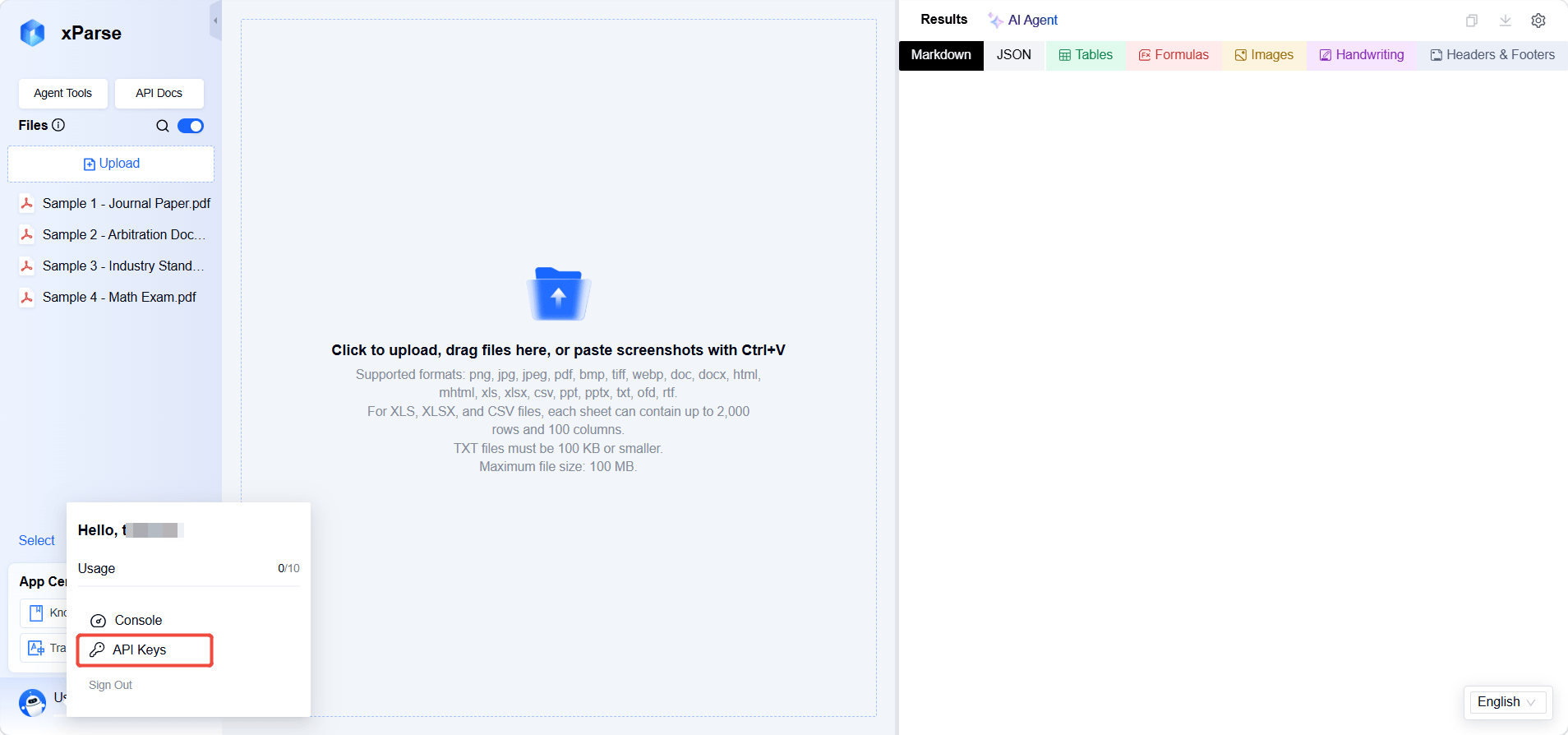
3
Copy your credentials
Copy your App ID and Secret Code. Use them in the 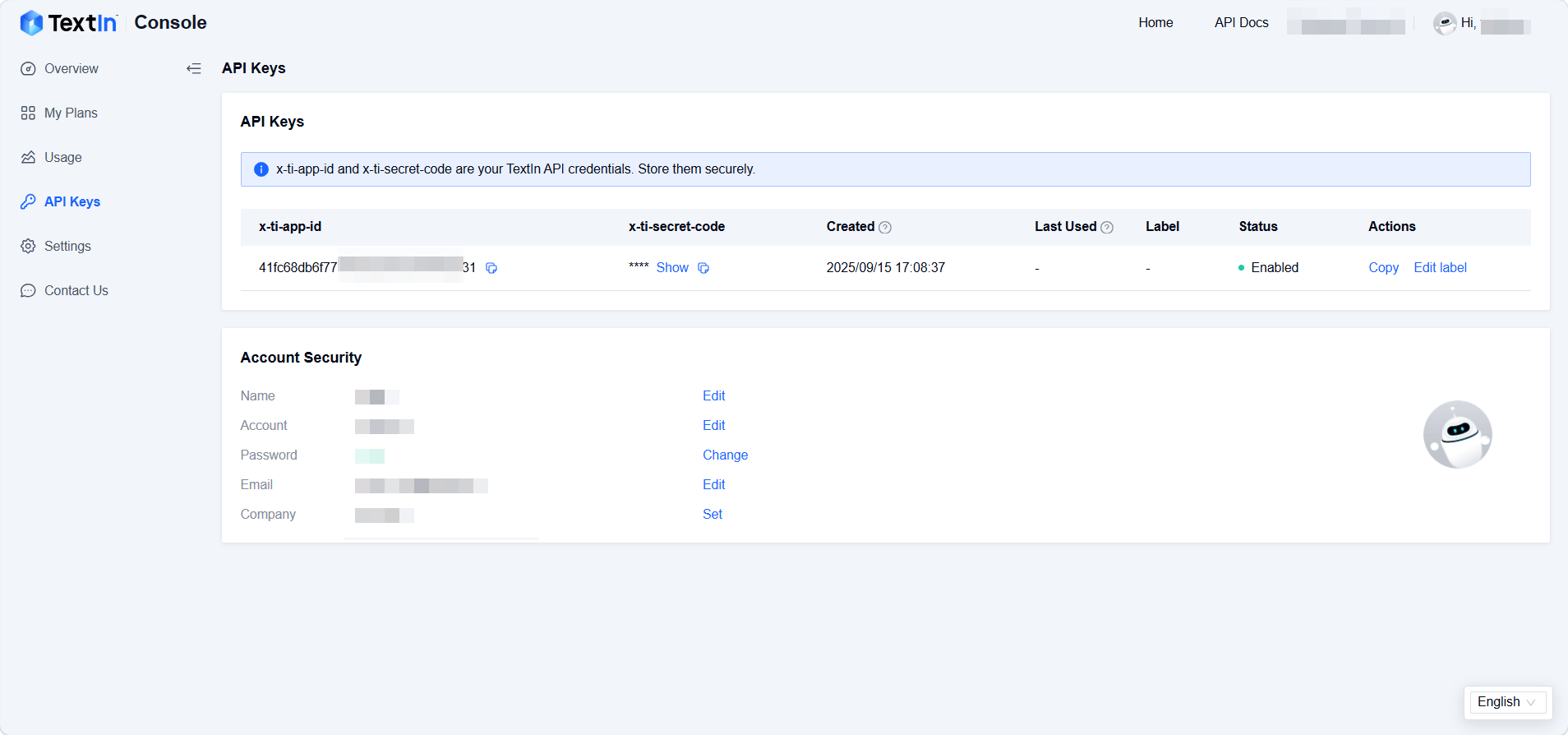
x-ti-app-id and x-ti-secret-code request headers.Verify your credentials
Send a test request:"code": 200 and the parsed document data.
Use environment variables
To avoid hardcoding credentials, store them in environment variables. macOS and Linux- cURL
- Python (requests)
Keep credentials secure
- Never commit credentials to version control.
- Keep credentials on the server. Do not expose them in client-side code.
- Use environment variables in production.
- Contact TextIn support immediately if you believe your credentials have been exposed.
Troubleshooting
Next steps
Parse Quickstart
Parse a document into Markdown and structured JSON.
Extract Quickstart
Extract structured data with an extraction schema.
Supported Files & Limits
Review supported formats, file sizes, and processing limits.